Freedom Riders

Image
Annotation

This website serves as an accompaniment to and location to showcase the PBS American Experience documentary Freedom Riders, which originally aired in May 2011. The Freedom Riders were young white and African American individuals who rode busses and trains in the South during 1961 as a form of peaceful protest against the Jim Crow laws. At the time, they met with threats, violence, and incarceration.

Follow along with an interactive timeline and an interactive map. Each leg of the journey is summarized with a couple of sentences of text, and cities where major events took place can be selected for a quick overview. You can also read brief biographies of key figures—riders, politicians, movement leaders, and more—or information on the issues of the day from Jim Crow laws to Vietnam War protests.

View short film clips or the entire documentary here. The full documentary transcript is also available for download. The Teachers' Domain, although it sounds appealing, contains only the same film clips. The difference is that in this section the video clips are all marked as being for 6th through 12th grade.

Finally, the most "teacher-targeted" material on the site is a downloadable teacher's guide for use when viewing the documentary.

Do I Have a Right?

Image
What is it?

Supreme Court Justice O'Connor conceived of the iCivics digital initiative to provide higher quality materials for civics education. The core of iCivics is a set of free-to-play web-based games. One of these, Do I Have a Right?, according to the designers, "teaches kids the constitutional amendments." Dissecting this a bit, the game essentially has three learning goals:

Students will be able to:

  1. Identify and summarize 12 of the amendments of the U.S. Constitution (1-6, 8, 13-15, 19, and 26).
  2. Judge whether a variety of individuals in hypothetical situations have had their constitutional rights violated.
  3. Apply the relevant amendments to cases where people's rights have been violated.

The game is aimed at a middle school audience but may be useful anywhere from 5th grade to high school, depending on the goals of the teacher and the role envisioned for the game in the unit (more on this later).

Getting Started

Do I Have a Right?, Screencap of client's claim In DIHR? the player manages a legal firm specializing in constitutional law. The player first selects whether to do the "Full Edition" of rights throughout the Constitution or "Bill of Rights" which focuses on rights within the first 10 Amendments. He or she then customizes their lawyer and chooses a partner lawyer who specializes on a right. The game takes place over seven rounds, each representing a day. In each round the player tries to earn as many prestige points as possible for the firm by taking on clients and winning their cases. This involves a three-step cycle.

First the player greets a new client. The client then presents their story and the player must determine whether the client's constitutional rights have been violated. Clients whose rights have not been violated must be told so and sent away. Clients whose rights have been violated, on the other hand, must be introduced to a lawyer specializing in the relevant amendment that protects those rights. As the player successfully completes rounds, each lawyer in the firm has the chance to level up. Doing so unlocks a specialization in one new right protected by a constitutional amendment. Each lawyer can learn three additional areas of expertise. Do I Have a Right?, Screencap of skill upgradeGeorge Sayit, for example, begins with freedom of expression. The player can, through successful gameplay, unlock George's ability to plead cases on the freedom of religion, right to vote regardless of race, and, finally, right to vote regardless of gender. The player can ultimately hire six lawyers, each of whom can have four areas of expertise. As a result increasing numbers of different constitutional scenarios can be brought up in each successive round of gameplay.

Appropriately for a game promoting learning, the player needs more than luck to succeed. Failure to send away clients with illegitimate complaints and failure to match legitimate clients with the right lawyers will subtract from the player's prestige score; success adds to the score. The stories of clients whose rights have not been violated tend more to the absurd. Some such as "Do I have a right not to learn to read and write?," however, may challenge schoolyard folk wisdom. The legitimate claims are often straightforward, though posed in a variety of ways. A player who is shaky on the exact rights guaranteed by the constitution, however, will need to think about each client's story carefully. Further, even those with a stronger recollection of the amendments can be misled by some claims if inattentive. A good example: "I want to be on a jury. Yesterday, my state governor announced that Asians can no longer serve on a jury. I am a U.S. citizen and I am 18 years old. Do I have a right to be on a jury?" References to age and ethnicity could trigger a player's associations with the incorrect amendments. Even if the client has a legitimate claim, matching his case to the wrong amendment will deduct from the player's prestige.


Do I Have a Right?, Screenshot of round summaryAt the end of each round, the player gets a summary of his or her performance. This takes the form of a newspaper that includes descriptions of the cases and relevant constitutional issues from the round. After the summary, the player can spend any earned prestige points to improve the firm—an important motivator since success at matching clients and lawyers leads to tangible gameplay bonuses. New lawyers can be hired, allowing the player to handle a greater variety of cases and win more prestige. In addition, each lawyer's desk can be enhanced with bonus items. These increase that lawyer's speed in handling cases, likelihood of learning a new area of constitutional law, or the prestige gained for a successful case. Finally, improvements can be made to the waiting area to increase the number of clients it can hold and the amount of time they will wait before storming off in rage—a feature that becomes especially important in later rounds as the number of clients increases.

At the end of the game the player is given a score report with a breakdown of play. This will help teachers identify areas of the amendments that the player needs to review more. Do I Have a Right?, Screenshot of hint system The ease of the control system and the core gameplay are important features of the game, adding to its suitability as a classroom tool. At the start of the game, onscreen hints helpfully label important areas of the firm and the screen—these hints can be left on or turned off at the player's discretion. All decisions are made through clicking on the relevant button or area in the game with the mouse. For those who still would like more guidance, there is even a teacher's guide that provides a detailed description of the game written for those less familiar with game motifs.

At its heart, DIHR? is a drill game. Unlike many other drill games, however, the focus on application as well as identification promotes a higher level of learning than many of its peers. Ultimately, DIHR? is well designed to achieve the goals of its designers. The playful and attractive graphics, core gameplay, and upbeat soundtrack make the game inherently engaging. The end-of-round system for leveling up lawyers and buying improvements will motivate players to continue playing, trying to improve their scores. Since maximizing one's score is best achieved by knowing the amendments well, DIHR provides an engaging and effective tool to learn basic constitutional rights.

Examples

Most teachers, of course, will want to go beyond the basic identification and application of constitutional rights. Happily, iCivics has provided some outstanding materials to help teachers foster students' analytical skills concerning constitutional rights. The site has an excellent pre-game lesson plan titled "Bill of Rights: You Mean I’ve Got Rights?" complete with flashcards, worksheets, and instructions for crafting a "Pamphlet of Protections." A post-game PowerPoint provides structure and questions for a debriefing discussion based on the many stories from the game. The PowerPoint can effectively spark conversation about the more complex issues involving free expression, unreasonable search and seizure, cruel and unusual punishment, etc.

These lessons, like the game itself, are targeted at a middle school audience. The game, however, can be effectively assigned as a lighthearted but worthwhile classroom warm up for high school students—after all, it can only help for students to be motivated to remember and apply the amendments. Teachers of high school civics can effectively use this game as a supplement to a more advanced discussion of constitutional rights crafted by the teacher—it all depends on the comfort the teacher and students have with the playful art, tone, and music of the game.

Upbeat and engaging, with core gameplay that encourages learning these 12 amendments well, Do I Have a Right? is well worth considering by any teacher interested in finding more engaging methods for learning constitutional amendments.

For more information

Do you use iPads in class? iCivics also offers Do I Have a Right? as a free app, Pocket Law Firm.

NewsTrust

Image
What is it?

The modern environment of 24-hour news and rapidly-reported events bombards students with information, but does not teach them to assess the reliability of that information. NewsTrust can help students develop what NewsTrust advisor Howard Rheingold calls 'Crap Detection': the ability to sort, assess, and identify bias.

Getting Started

When first arriving at the NewsTrust website, you will see a variety of news stories and broad current event topics. Registering for an account is not necessary to explore the site and the wealth of rich resources that lie within it. Click on 'Guides' in the top menu on the homepage to gain access to the educational resources. If you would like to register for an account, click the sign up button in the upper-righthand corner of the homepage. Sign up is incredibly easy and quick. Once you have completed registration you can start the process of evaluating news sources inside a collaborative, social network. If you intend to sign up your classes, the students would go through the same procedure for registration. You can use the resources of NewsTrust in layers. The supplemental materials, including a guide to thinking like a journalist, work through a variety of readings and activities to analyze bias, sourcing, and perspective. If you want more than the instructional supplements, you can also set up groups for your students and jump into actually evaluating the news alongside the burgeoning NewsTrust community. Within the community, students can participate in challenges such as News Hunts. A News Hunt is described as

. . .a bit like a scavenger hunt for quality news and information on important public issues. Each News Hunt lasts one to two weeks, during which NewsTrust members collaborate with a variety of partners to review a wide range of news stories on a chosen topic. At the end of the week, we recommend the best (and worst) news coverage on that topic, based on ratings from our community.

Although NewsTrust often sponsors these events, there is nothing stopping a classroom teacher from issuing their own News Hunt to the class. Digging up 'the news,' scavenger-hunt-style, can bring home its relevance to students. Similarly, the NewsTrust Truthsquad actively collaborates with FactCheck.org and the Poynter Institute. Truthsquad members "help fact-check controversial statements from politicians, media pundits, and public figures." I intend to use participation in the Truthsquad in one of my classes to hone my students' skills for fact checking, research, and logic.

Examples

A year ago, I decided to use NewsTrust as a part of my Globalization class in an attempt to address the need for 'Crap Detection' while also engaging students in meaningful conversation around the global news of the day. A typical introduction to NewsTrust for my class looked like this:

  • Day One — Investigate global news sources, using the Newseum website
  • Day Two — Read and discuss 'Crap Detection'
  • Day Three — Review a story together as a class
  • Day Four — Review a story in table groups
  • Day Five — Locate a high-rated and a low-rated story and discuss in table groups the merits of each article and whether the evaluations were relevant and accurate
  • Day Six — Review a story of interest individually
  • Throughout the rest of the semester, I assigned a series of challenges and tasks that required them to not only rate but also add stories to the NewsTrust bank of stories. Pedagogically, I use NewsTrust for a number of reasons: it prompts students to distinguish between 'good' and 'bad' journalism, a skill paramount for an informed citizenry; it provides a community of thinkers for students and teachers to interact with; and it can help teach students to read and react to a number of varied sources and to network their inquiry and learning.
For more information

This guide from FactCheckEd.org can get your students off on the right foot, as they consult news sources.

Remember that historical newspaper articles are as open to analysis as are modern ones! This video shows a student modeling assessment of a 1925 article on the Scopes Trial, while historian Barbara Clark Smith takes a look at an article from the colonies in 1775. For primary sources to work with, try searching our Website Reviews using the keyword 'newspapers' and the time period you're interested in.

YouTube

Image
What is it?

YouTube is a popular video hosting tool that allows users to create and upload videos as well as browse submissions by other users. At more than 1 billion views per day, it is the most accessed video hosting site on the Web, producing both challenges and rewards for educators.

Getting Started

The YouTube video hosting site, like the Google search engine, has so utterly dominated the market that there are probably few people who haven't heard of it—amazing for a company only six years old! With success, however, comes obstacles for educators. The content on YouTube is diverse and many school system administrators have blocked YouTube for that very reason: just as students can find interesting and educational videos to better understand history, they can also be distracted by non-educational content (some of which might be inappropriate). Regardless of school system filters and restrictions, YouTube can enhance the teaching of history. Here are some tips and considerations to keep in mind. One strategy is to use YouTube for planning purposes at home or at work. Whether you sign up for an account or simply browse, begin by looking through available YouTube channels. YouTube EDU (youtube.com.edu) offers videos aimed at educators from many institutions of higher learning. A quick search for "civil war" within the YouTube EDU portal yields a variety of engaging videos that provide usable content (note: many of the videos in this search are lectures, but others include vodcasts—such as an examination of Winslow Homer by Duke professor Peter Wood).

Examples

Here are a few suggestions on how to best search for educational videos in the classroom:

Teach students how to search online wisely.
  1. Set up your own channel. This approach requires a bit of work up front, but it provides a resource that can be used repeatedly. And once searching for history videos becomes second nature, it becomes easier to teach students how to search for quality content on YouTube. As you find course-appropriate videos, click on the down arrow button next to "Add." Here, you have two choices: either add the video to "favorites" or create your own playlist. "Favorites" automatically displays in your course YouTube channel. In order to display a personalized playlist, however, you must be logged onto your YouTube account and in your specific channel. There, you will find a user menu at the top and be able to select "Videos and Playlists." Check the playlist box, and then check the specific title of your desired playlist. Your channel will refresh and display the specific playlist underneath "favorites." Once you collect a number of videos in the course channel's "Favorites" category, or add them to a specific playlist, students can select from videos approved for the course.
  2. Teach students how to set up their own "History" channels. After setting up a course-specific channel with favorite videos and user-generated playlists teach students how to create their own channels and playlists. This is ideal for long-term projects. Students can also add videos to the course YouTube channel by emailing you the link to a particular video, or if you have created a student-accessible account, students can add videos directly. Specific guidelines and monitoring, though, are highly recommend to avoid unwanted videos on a course channel.
  3. Search for reputable organizations on YouTube. Find channels created by educational organizations such as the Library of Congress, National Archives, TimeLife, or the U.S. Holocaust Memorial Museum.
  4. Use existing channels as a gateway to other sites. For example, TED.com offers videos from TED (Technology, Entertainment, Design) talks around the world. It hosts videos both on its own site and on YouTube. Arrangements like this provide educators some flexibility by using YouTube as a "gateway" to other video sites. For example, a quick exploration of TED videos via the tags page leads users to talks on history that can be used to generate discussion in class.
  5. Teach students how to search online wisely. Teaching students how to become digitally-literate is now part of many social studies teachers' job descriptions. Too often, we expect students to be more savvy than their elders in using new-media technologies . . . and sometimes they are. Social studies teachers, however, can teach students how to maximize the use of online tools for the research, writing, and production of history. Searching for "Civil War" or "Jefferson" is unlikely to yield desired results (unless students want to watch Jefferson Airplane and Guns N' Roses music videos). Encourage students to use specific search terms and broaden from there if necessary. For example, specifying the "American Civil War" will provide better search results than simply searching for "Civil War." "U.S. Civil War battles in western North Carolina," however, may be too specific to generate good results. Search for a particular event ("Battle of Bull Run") will help, as will using first and last names when searching for YouTube videos on famous personalities in history—such as "Thomas Jefferson."

"Wait! YouTube is blocked at my school!"

Here are a few options that might work:

  • If YouTube is blocked at your school, use write-ups like this Tech for Teachers entry (as well as other education articles) to see if school system IT personnel can allow password-protected access to YouTube.
  • Ask the school system's IT personnel to unblock your teacher-generated course (or teacher) channel on YouTube. You may want to add to this list any organizational YouTube channels of importance to your teaching, such as the Library of Congress or the JFK Library. Providing a particular list of URLs for content-specific YouTube channels will increase your chances of accessing valuable videos. This is a much easier request than providing hundreds of URLs for individual video clips.
  • If all else fails, you may be able to download YouTube videos at home for use in the classroom. Many free sites can convert YouTube videos into files that can be played on QuickTime, Real Media Player, or Windows Media Player. Sites like Convert Direct or Media Converter will convert YouTube videos into an .mp3, .wmv, .avi, or .mov file. Pay close attention to copyright restrictions before copying online content.
  • TubeChop is an online tool to cut, or chop, a particular portion of a YouTube video—perfect for showing a specific clip for classroom instruction. Users drag the beginning and end cursors to desired location, chop, and TubeChop provides a URL address via their site and an embed code.

In short, YouTube offers teachers a wide variety of materials to use in the classroom. As with any online tool, careful consideration is necessary before students begin using YouTube for historical research and projects. Videos are not a solution to ineffective lessons, but when used in a specific—and targeted way—they can enhance well-designed lesson plans, engage visual learners, and help make history come alive for students.

For more information
  1. Baker, Richard Beach & Frank W. “Why Core Standards Must Embrace Media Literacy.” Education Week, June 22, 2011. http://www.edweek.org/ew/articles/2011/06/22/36baker.h30.html
  2. Hammond, T. C., & Lee, J. K. (2010). "Editorial: Digital video and social studies." Contemporary Issues in Technology and Teacher Education, 10(1). http://www.citejournal.org/vol10/iss1/socialstudies/article1.cfm
  3. Lesson Plan Idea: Using YouTube in a social studies/geography lesson.
  4. A small but helpful list of links to history-focused YouTube videos.

What Do You Mean?: How Language Changes Over Time

Teaser

This creative lesson transforms language into a historic artifact and enables students to analyze how language changes over time.

lesson_image
Description

Students create sentences using words whose meanings have changed since the 17th century. They then discover how their sentences change meaning when the words’ 17th century meanings are used.

Article Body

This lesson provides students with a simple introduction to a fundamental and often elusive component of historical thinking—placing the prose of an historical document in its appropriate context. Students begin with a list of words from 17th-century English that are still in use in the 21st century. Students create sentences using these words based on their modern meanings, then note how their sentences change in meaning with the 17th-century usage of the words. The short follow-up discussion focuses on how such changes in the meanings of words make the historian’s task of analyzing primary sources challenging.

Contextualization, or placing a historical text in its appropriate social, political, cultural, and even linguistic context, is a challenging task even for collegiate students of history. Because contextual influences are often subtle and linked to extensive background knowledge, younger students can have difficulty noticing them, and teaching younger students to recognize the historical context of a document can be a daunting task when students are already dealing with challenging texts. This lesson introduces the idea of context through the changing meaning of words. Rather than dealing with the meanings of entire texts, students are focusing on the meanings of individual words. Thus, this lesson provides a useful starting point in laying the foundation for historical thinking skills like contextualization and the close reading of documents, while clearly showing that language changes over time.

Topic
Daily Life, Southern States
Time Estimate
1 class session
flexibility_scale
4
Rubric_Content_Accurate_Scholarship

Yes

Rubric_Content_Historical_Background

Yes
In addition to information on the historical usage of words featured in the lesson, the site also includes a brief article on the history of the Jamestown settlement, and a variety of other resources for teachers and students.

Rubric_Content_Read_Write

No
The amount of writing required is minimal, but teachers may easily adapt and extend that part of the lesson.

Rubric_Analytical_Construct_Interpretations

No

Rubric_Analytical_Close_Reading_Sourcing

No
Although the lesson itself does not require close reading, it focuses on skills that will help students closely read and question other texts.

Rubric_Scaffolding_Appropriate

Yes
This lesson is easily adapted to the needs of a variety of students; while designed for elementary school, it could be adapted easily for a middle or high school classroom.

Rubric_Scaffolding_Supports_Historical_Thinking

No
Teachers may want to scaffold the lesson for younger students by providing 21st century definitions of the words.

Rubric_Structure_Assessment

No

Rubric_Structure_Realistic

Yes

Rubric_Structure_Learning_Goals

Yes
A simple, but elegant, plan.

Google Maps

Image
What is it?

Google Maps allows users to place markers, upload pictures of specific locales, draw lines and shapes, and provide descriptions—helpful for constructing historical maps or geography-based lessons.

Getting Started

Working with Google Maps is simple enough, but users will (of course) need to establish a Google account in order to create a map. After signing in, the first step is to provide the map with a title and description, as well as establish privacy and share settings; the map is already in edit mode. Text can be entered in plain or rich text—great for inserting links. Users will see three icons in the left corner of the map: a hand (navigation tool), a marker pin (with over 90 icons), and a jagged line (to draw lines and shapes). To create a marker, select the corresponding icon and select style and click on the desired location on the map. After entering a title, users can select the rich text format to not only insert hyperlinks but also add images to the marker by selecting the image's URL address. In addition, you can embed a Google Video or YouTube clip by copying the embed code and pasting it into the description field. To create a line, users can simply click at the beginning point, click at subsequent locales, and double click to finalize the desired route. Creating lines using existing roads may be a useful for tracing travel and trade routes.

Google Maps facilitates collaborative learning and helps teachers extend and refine their lessons through an interactive medium that promotes critical decision making.

Two more tool options are found at the top of the left bar, above the title of the map: "collaborate" and "import." The collaborate function—which allows users to invite others to help create and edit a map—is ideal for group projects. Teachers can also use this function to collaborate with colleagues teaching a similar course. Either way, Google Maps facilitates collaborative learning and helps teachers extend and refine their lessons through an interactive medium that promotes critical decision making. The import option allows users to add map data from a KML, KMZ, or GeoRSS file. This is a very useful tool if teachers are able to find good historical "overlays" for their maps. A brief search for historical KMZ files yielded several good imports, such as battles of the Civil War, significant cities of the Civil Rights Movement, and U.S. presidential elections (using search terms like "historical maps KMZ" or "KMZ historical places" is a good way to start . . . but the development of these types of files is still growing so it may take some searching). Google Maps does have some glitches. Creating routes using the "line drawing" tool is tricky. Starting points do not always appear where you click to select, and editing an existing route is difficult; the pointer on the screen does not always match the marker boxes designed to click and drag to a new point on the map. In creating our own map, we also ran across an interesting problem. We created a map with markers and descriptions, but when we accessed it at a later date, the information appeared but all the markers on the map disappeared. Furthermore, the links in the information panel were no longer active. We would recommend creating a database on an Excel spreadsheet first, using columns such as "latitude, "longitude," "name,", and "icon." Then you can convert the Excel document into a KML file by using an online site such as Earth Point, which does an excellent job of providing a step-by-step process on how to create a "KML-friendly" Excel spreadsheet, lists the various ways to enter longitude and latitude coordinates, provides the numbers for hundeds of different marker icons, and also has a feature where you can make the conversion on the Earth Point site. A new KML file will be downloaded onto your computer, which can then be imported in Google Maps. Voila! All the markers appear, with descriptions in place.

[Note: it is highly recommended to use the decimal format for coordinates. Excel spreadsheets only accept negative values in the decimal-coordinate format. Any location in the Western and Southern hemisphere is a negative coordinate.] Although such a process sounds tedious, we found that this extra step is useful if you want to continue editing a map, or, more importantly, if a glitch causes the information on Google Maps to disappear. You can import the KML file into your Google Map at any time and replace the old one. Consider the KML file a Google Maps "backup" file.

Examples

One good site to examine the potential of map overlays is Dave Rumsey's site. In an 1861 historical overlay, we see an old map of Washington, DC over a Google Map in Satellite View. By clicking on "Washington DC 1861" on the right, users can make the map come and go as they please. Likewise, by clicking on "transparent map", users can add and remove modern street names and locales.

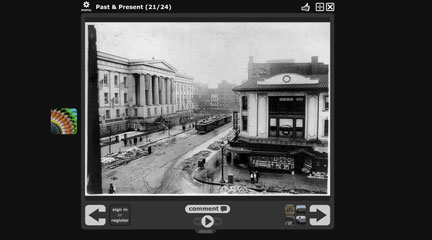
Historypin is another good site to see what users can do with pin markers, photographs, and other information that can make history come alive.

Another good site to examine student-produced Google Maps projects is Google Historical Voyages and Events. By clicking on "historical events" on the left sidebar menu, several student-created projects are available for browsing. One useful starting point is to select "Major Events of the Civil War" and browse various class projects in Google Maps. "Major Events of the Civil War," a 5th-grade class project, also includes detailed for educators to gain ideas of how to use Google Maps in the classroom across grades 5-12.

For more information

Helpful tips and tutorial for users new to Google Maps.
A useful primer on KMZ and KML files.
10 minute video of how Google Apps work for the K-12 classroom.

Voki

Image
What is it?

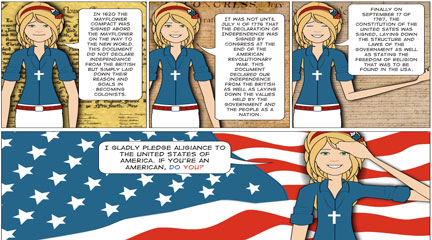
Voki allows users to create personalized speaking avatars and use them to re-create historical actors, unique characters, or other figures. By controlling their voices, students can use their avatars for role play or to reenact famous speeches.

Getting Started

Luckily Voki allows users to practice creating an avatar without enrolling or creating a new account. You can choose characters from various categories and several obvious historical personas are available like George Washington, Abraham Lincoln, and modern-day political figures. Each avatar can be customized by head, clothing, accessories, and various voice options. Users can also select background images and resize the avatar in relation to the player window. After selecting the voice option, users can enter text and listen to the voice that is created. Likewise, if users want to record their own voice they can also playback their recording until satisfied.

Once the Voki avatar is created, users can publish their creation. By registering an account with Voki, all Avatar creations are saved under the user's account for continual access. If users forego the registrations, the finalized avatar does contain a unique URL link (which should be copied down for later access.) Users can also use the embed code to immediately post or bookmark the avatar in whichever social network site they prefer.

Whether users want to embed their avatar on their own site, in an email, or a course blog, these creations can liven up any history class.

Examples
By speaking through an avatar, students will not only maintain retain online privacy but will appreciate an innovative and safe platform for classroom presentations.

In a simple avatar that imagines a modern-day George Washington, students could apply Washington's guiding philosophies to modern issues such as health care, immigration, or foreign interventions. By speaking through an avatar, students will not only retain online privacy (great for teachers and parents!) but will appreciate an innovative and safe platform for classroom presentations.

Students can use their avatars to engage in debates and topic discussions—such as Abraham Lincoln and Ronald Reagan engaging in issues of states rights and federalism. Likewise, students could use their avatar creations to address a homework question on a course blog or wiki page. Another good use of Voki avatars is to re-enact famous speeches such as the Gettysburg Address, or to summarize the President's State of the Union Speech in under two minutes by examining word clouds released after the speech.

Finally, a wonderful use for these avatars is to apply gained knowledge of philosophical views of historical figures into fictional scenarios. For example, students can create a fictional character that meets a certain demographic (i.e. middle-aged Hispanic female nurse). Then the entire class, made up of various American citizens, can conduct a town hall debate on the key issues of the past and present. A variation of this format is to conduct a town hall of famous American politicians and personalities—such as Barack Obama, Reagan, Washington, Lincoln, John Kerry, Hillary Clinton, Sarah Palin, and John Stewart.

For more information

Voki for Education has plenty of materials and suggestions that can help teachers gain inspiration for how to make the best use of the available technology. One helpful feature is the Teacher's Corner Message Forum—a quick browse through the posted messages is worth the time spent.

Voki also has a Lesson Plan site that can be searched through grade level and/or subject area. A useful FAQ section can also help users to orient themselves to the tool.

Padlet

Image
What is it?

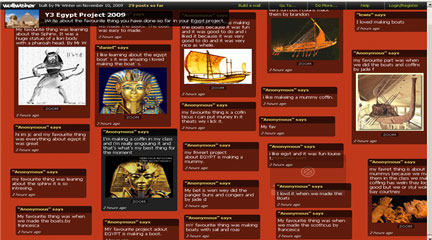
In a nutshell, Padlet is an online bulletin board. History teachers, however, can use this tool in myriad ways. For example, Padlet users can pose open-ended questions and elicit multiple student responses—ideal for posing document-based questions using primary sources. Users can also create their own "post-it" notes in response to a directed question. Teachers can also use Padlet as an online posterboard—a natural fit for group projects. Padlet can also function as a "bell-ringer" or "ticket-out-the-door" activity, as well as a homework assignment.

Getting Started

Although registering is not required, it is free and easy to do via Padlet's own registration portal, or using a Google (or Open ID) account. Once users are registered, they can create their first bulletin board and (in the top left corner) edit the title and description of the "wall." Teachers can create a topic, or simply post a question for students to answer. Users can also edit the image associated with the wall, which functions as an identifying logo. (Students looking to create a World War II wall could use, for example, a propaganda poster like Rosie the Riveter as the logo.) Lastly, users can select the design template and set access privileges (which includes a custom URL ID).

After the wall is established, users can add a "post-it" note by double-clicking anywhere on the wall. Text, audio, video, and images can be posted to the wall (videos and images automatically display a Zoom picture when clicked on—a temporary pop-up window for viewing.)

[Note: Do not place any "sticky notes" too close to the wall title and description. If the top of the sticky note is hidden underneath the wall title and description, it can be hard to move the note.]

Examples

An easy way to experiment with Padlet is to give it a try with a simple question. Once users become more accustomed to how Padlet functions, they can construct walls that employ more Web tools. We posted a sample question on a 1960s U.S. advertisement for a non-coffee product so that readers of this Tech for Teachers entry can add their own thoughts. Try it out! Leave a "sticky" note and tell us how you would respond to the coffee question, ad, and TV commercials.

The use of various multimedia sources makes historical questions more complex, engages students, and goes beyond what is possible in a traditional worksheet/whiteboard approach.

Embedding an image for viewing and providing a directed question allow the coffee example to work like a document-based question (DBQ). Additionally, the coffee question can be expanded into other discussions. In this case, a YouTube clip on coffee advertisements opens up questions about gender relationships in 1950s-1960s America. The use of various multimedia sources makes historical questions more complex, engages students, and goes beyond what is possible in a traditional worksheet/whiteboard approach. By modeling specific uses for Padlet, teachers can also empower students to create their own effective walls for classroom use and history-based discussions.

A few technical issues are worth considering. Each sticky note is limited to 150 characters. Also, images heavy on text might not be legible, even in their zoom pop-windows. If this is the case, viewers can find larger images by either right-clicking the image and saving it to their desktop, or enlarging the zoom view on the computer screen. Lastly, and most problematically, the site tends to become tied up and non-responsive. We have encountered many instances when Padlet fails to load properly. However, the value of the tool should encourage users to be patient and hope for a more consistent service in the future. Padlet is a simple tool, but one that can accentuate the best teaching practices teachers employ on a day-to-day basis. For students, carefully posed questions will allow them to respond in many ways—which only helps classroom discussion.

For more information

Check out the Padlet Blog to see some other ideas for using Padlet.

Little Bird Tales

Image
What is it?

Finding digital tools for social studies in the elementary classroom, especially in the early grades, can be a bit difficult. Little Bird Tales is a helpful tool in making social studies come alive for young students through its simplicity and marriage of visuals and sounds.

Getting Started

Registering with Little Bird Tales (LBT) is quick and easy; the focus on small learners means that privacy concerns are respected: the site contains no ads, merchandising, or external links, and only requires a valid email to sign-up. LBT also offers a teacher account, which is accessible via an email request (teachers should provide the same email used to sign-up). Before working with students, teachers should be aware of the technical specifications, such as supporting browsers, image file size, and storage capacity—the FAQ page addresses these points fairly well.

Once an account is activated, creating a digital tale is fairly simple. Click on "create a new tale" to construct the tale cover. Users can either draw an image—using the built-in art pad—or upload a saved image (note: minimum image size is 600x420 px). Add a title, submit author information, and a record an audio introduction to finalize the tale cover. Users should also test microphone quality for volume and clarity before proceeding with new pages.

Each subsequent page follows the same procedure, and the size of the final project is only limited by the tale box capacity in your account. The main difference from the cover page is that students can enter text for their product—an ideal feature that reinforces reading and writing, while providing students a "script" for their sound recording. Page order can be easily rearranged at any time by dragging each page into the desired order in the sidebar found on the right.

Users can resume editing their tales by logging back in, selecting "My Tales," and clicking on the notepad icon. Other icons on the "My Tales" screen include a play option (to see the video in progress), an email icon to share the video, and a trash icon to delete the tale project.

Once the video tale is completed, users proceed to step three in order to share the tale via email—regardless of whether users choose to keep the video private or make it public. Users who choose to make the video public can do so by clicking on the account homepage (house icon) and selecting "public" under the cover page image (note: Little Bird Tales moderates all videos before they become public).

Examples

It is highly recommended that teachers create a "test-run" project ahead of time before working with students. In addition, it might serve well to have students prepare all images and script beforehand. Users can create their own artwork using the built-in drawing pad, but teachers may need access to a scanner to create image files of original student artwork on paper (note: images and scans should be saved in .jpg, .png or .gif).

Little Bird Tales works well because it captures the imagination, creativity, and voice of the child in a free and easy to use platform.

The strength of Little Bird Tales is the ability for children to tell stories that can be autobiographical (my life, my community, my school, my family), biographical (U.S. presidents, world history figures), or related to other aspects of the early grades social studies curriculum such as the environment, economics, civic ideals, or global communities. Little Bird Tales works well because it captures the imagination, creativity, and voice of the child in a free and easy to use platform. Public Tales on the LBT site include a civics project on American symbols, a story on "daddies", a tale on regional history, a silent tale on global cultures and clothing using beautiful imagery, and an inspirational video by a young runner. Middle school and high school students can also benefit from LBT, as evidenced on a video dealing with homelessness in America. In our experience in working with a 1st-grader, the initial day of trying out LBT was a learning curve for her but she caught on quickly. With simple guidance, she was able to do all the work (although uploading images needed more hands-on assistance.) By the half-way point, she was typing, recording her voice, saving her work, and moving on to the next slide. Fatigue did settle in after a while, so preparing all materials and images beforehand helped her. She also discovered LBT's ability to rearrange pictures in any order—a useful benefit whenever she changed her mind after previewing the video. The student found the playback of the recording useful and empowering; immediately recording a passage again helped her get the video "just right." It took her about 2-3 hours in total to finish the project. Keeping this one experience in mind, it might be best for teachers to first try LBT by having each student create one or two slides for a class video. For example, in a 50-states project, each student could easily adopt one or two states and create a few slides which would allow the entire U.S. to be included in a video project. This model could likewise work for U.S. presidents, famous American citizens, local communities, or other topics with a large number of elements. Such an introductory approach serves teachers and students alike. Children can become familiar with technology in a limited way by creating only a few slides. For their part, educators can invest limited curriculum time for a collective project, before expanding a video project to a more extensive one for individual students.

For more information

Teachers, review the specific features provided by the "Teacher Account," including class and school management.

For more on the tool, read Discovery Education Blog on Little Bird Tales